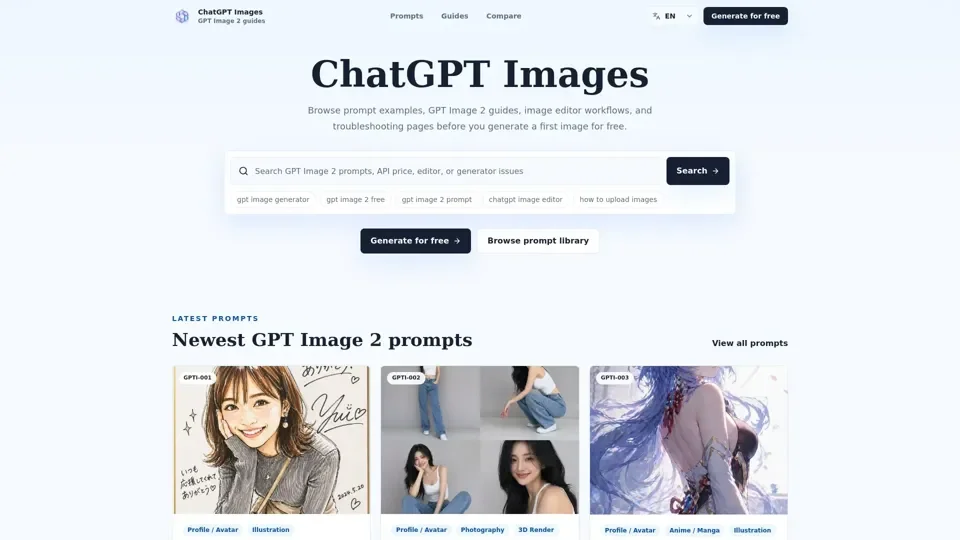
What is GPT Image 2?
GPT Image 2 is an AI-driven image generation model that provides users with a wide range of tools and prompts to create high-quality images. The model is designed to generate images based on text prompts, allowing users to create custom images for various purposes, including social media, advertising, and more.
Feature of GPT Image 2
The key features of GPT Image 2 include:
-
Prompt Library: A vast library of pre-made prompts that users can use to generate images.
-
Image Editor: A built-in image editor that allows users to edit and refine their generated images.
-
Reference Image Prompts: The ability to use reference images to generate new images with similar styles or compositions.
-
Text Rendering Prompts: Specialized prompts for generating images with clear and readable text.
-
API Pricing: A flexible pricing model that allows users to estimate and control the cost of image generation.
How to Use GPT Image 2
To use GPT Image 2, follow these steps:
-
Choose a Prompt: Select a prompt from the library or create your own custom prompt.
-
Generate an Image: Use the GPT Image 2 generator to create an image based on your prompt.
-
Edit and Refine: Use the image editor to edit and refine your generated image.
-
Iterate and Improve: Repeat the process to iterate and improve your image until you achieve the desired result.
Price of GPT Image 2
The price of GPT Image 2 varies depending on the quality, size, and number of images generated. Users can estimate the cost of image generation using the API pricing guide and plan their budgets accordingly.
Helpful Tips for Using GPT Image 2
To get the most out of GPT Image 2, follow these tips:
-
Start with Pre-Made Prompts: Use the pre-made prompts in the library to get started and learn how to create effective prompts.
-
Experiment and Iterate: Don't be afraid to experiment and iterate on your prompts and images to achieve the desired result.
-
Use Reference Images: Use reference images to generate new images with similar styles or compositions.
-
Check the API Pricing: Estimate the cost of image generation and plan your budget accordingly.
Frequently Asked Questions About GPT Image 2
-
What is GPT Image 2?: GPT Image 2 is an AI-driven image generation model that generates images based on text prompts.
-
How do I use GPT Image 2?: Use the GPT Image 2 generator to create an image based on a prompt, and then edit and refine the image using the image editor.
-
What is the price of GPT Image 2?: The price of GPT Image 2 varies depending on the quality, size, and number of images generated.
-
Can I use GPT Image 2 for free?: Yes, users can generate images for free using the GPT Image 2 generator, but with limited usage and quality.